Following are the steps the process will go through from creating a Sales Order to Posting the details in GL.
Inventory: Onhand availability, Reservation
Receivables: For Receipt against invoice
General Ledger: Importing, entering and posting the journals
Enter the Customer details (Ship to and Bill to address), Order type.
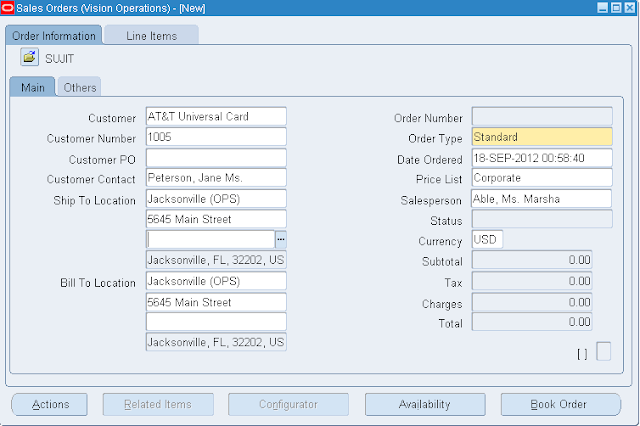
Line is scheduled automatically when the Line Item is saved.
Scheduling/unscheduling can be done manually by selecting Schedule/Un schedule from the Actions Menu.
You can check if the item to be ordered is available in the Inventory by clicking on Availability Button.
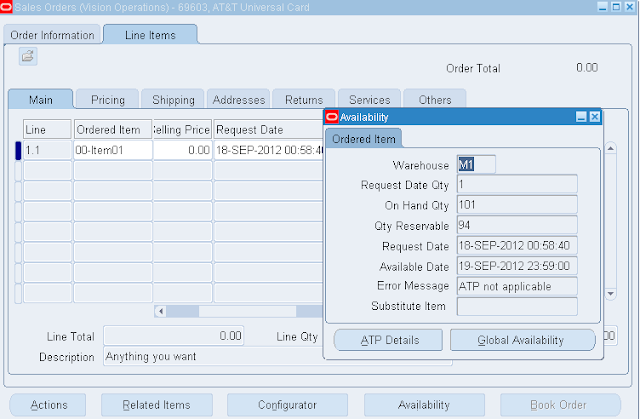
Save the work.
Tables Affected:
OE_ORDER_HEADERS_ALL
OE_ORDER_LINES_ALL
Columns used for identification of flow
FLOW_STATUS_CODE in both the tables which is ENTERED.
Book the Sales Order
Book the Order by clicking on the Book Order button
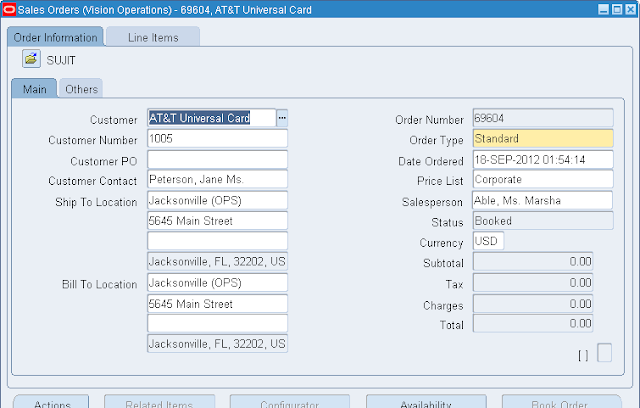
Now that the Order is BOOKED, the status on the header is change accordingly.
Tables affected:
The FLOW_STATUS_CODE in the table OE_ORDER_HEADERS_ALL would be BOOKED.
The FLOW_STATUS_CODE in OE_ORDER_LINES_ALL will be AWAITING_SHIPPING.
New records will be created in WSH_DELIVERY_DETAILS with RELEASED_STATUS=’R’ (Ready to Release)
Also Record(s) will be inserted into WSH_DELIVERY_ASSIGNMENTS
At the same time DEMAND INTERFACE PROGRAM runs in the background and inserts into MTL_DEMAND.
Launch Pick Release
Shipping > Release Sales Order > Release Sales Orders
Give the Sales Order and Rule details as required
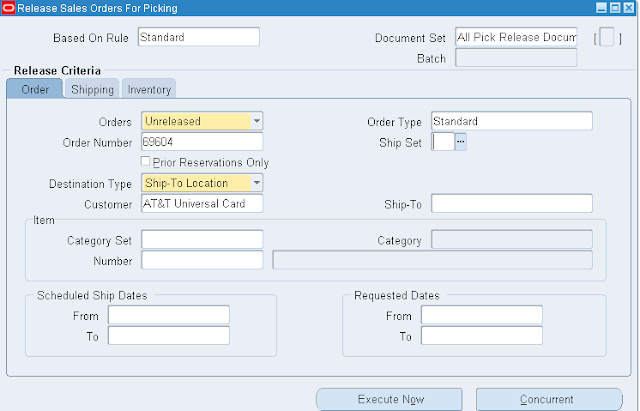
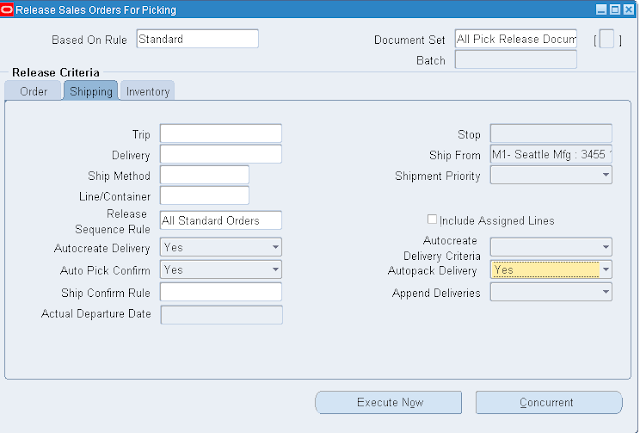
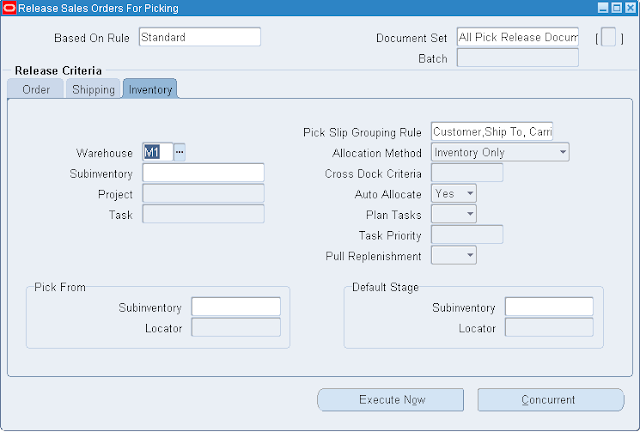
Then select Execute Now button.
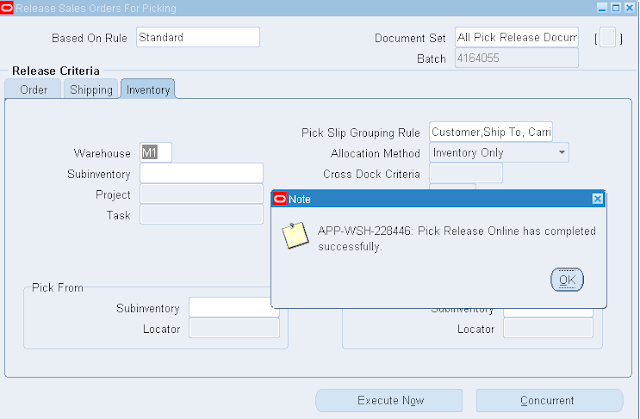
On completion this will show below window
Tables Affected
If Autocreate Delivery is set to ‘Yes’ then a new record is created in the table WSH_NEW_DELIVERIES
DELIVERY_ID is populated in the table WSH_DELIVERY_ASSIGNMENTS
The RELEASED_STATUS in WSH_DELIVERY_DETAILS would be now set to ‘Y’ (Pick Confirmed) if Auto Pick Confirm is set to Yes otherwise RELEASED_STATUS is ‘S’ (Release to Warehouse)
Pick Confirm the Order:
If Auto Pick Confirm is set to Yes during Pick Release, then this process will happen systematically.
In other cases, need to do this by doing a move order transaction
Inventory Super User > Move Order> Transact Move Order
Take the Move Order Number form the Shipping Transaction Form and find that and transact.
Ship Confirm the Order:
Order Management Super User>Shipping >Transactions
Find by Order Number
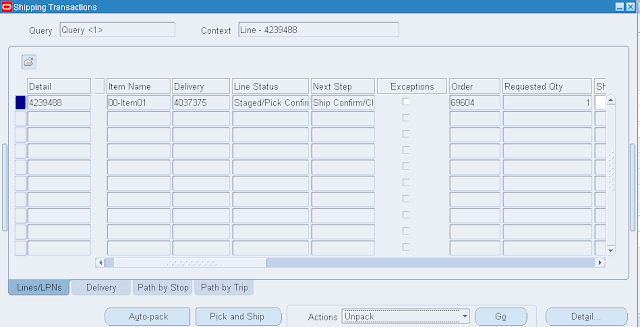
Here you can find all the details
If the line status is Staged/Pick Confirmed, we can go for a shipment Then Click on the Delivery tab
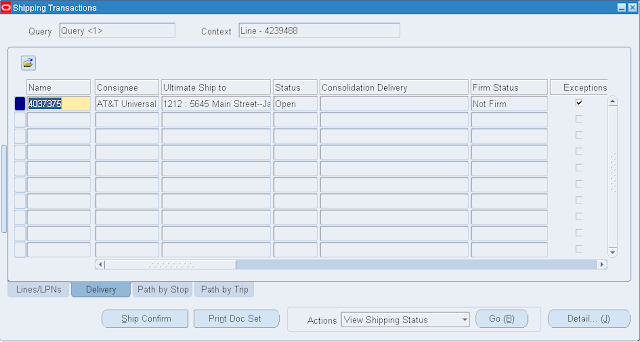
Then Click Ship Confirm
Note: If Ship Confirm button is inactive, then please check to the user id you are logged in, whether Shipping Grant given or not. If not they add a shipping grant to the user id and try again.
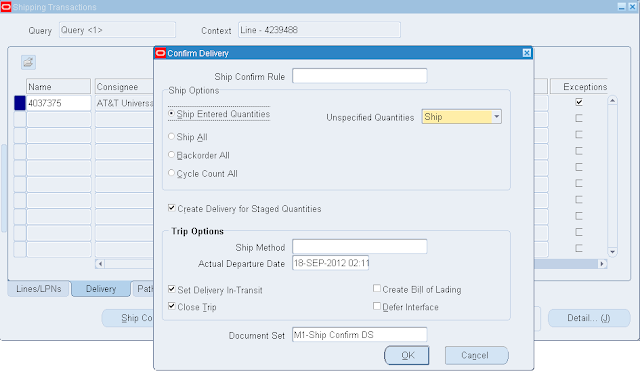
Then OK.
The Status in Shipping Transaction form in Delivery tab should be closed
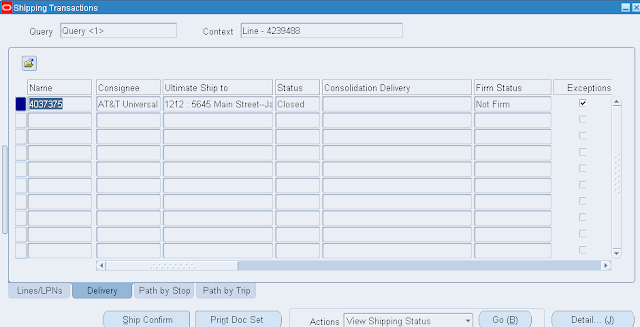
This will kick off concurrent programs like.INTERFACE TRIP Stop, Commercial Invoice, Packing Slip Report, Bill of Lading
Tables Affected:
RELEASED_STATUS in WSH_DELIVERY_DETAILS would be ‘C’ (Ship Confirmed)
FLOW_STATUS_CODE in OE_ORDER_HEADERS_ALL would be “BOOKED“
FLOW_STATUS_CODE in OE_ORDER_LINES_ALL would be “SHIPPED“
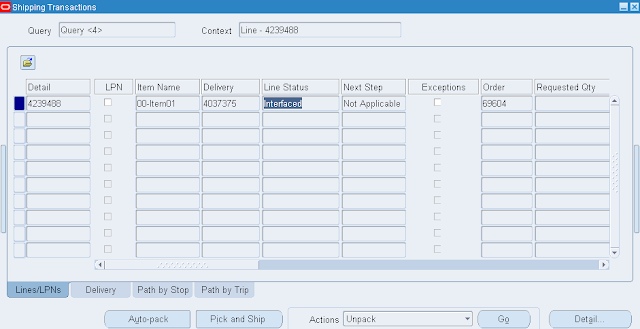
Once all background process completes, the Shipping Transaction Status in Lines/LPNs tab becomes Interfaced
Create Invoice:
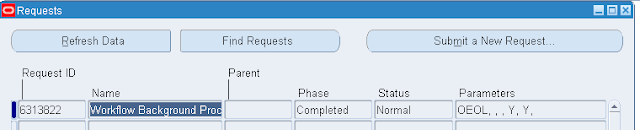
Run workflow background Process
Order Management >view >Requests
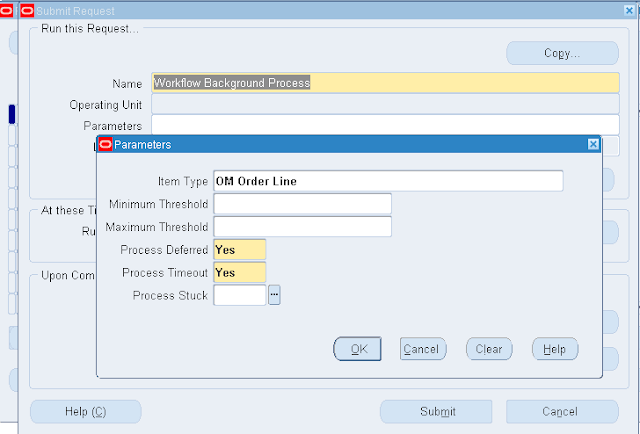
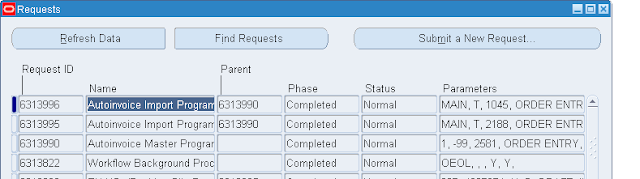
Workflow Background Process inserts the records RA_INTERFACE_LINES_ALL with
INTERFACE_LINE_CONTEXT = ’ORDER ENTRY’
INTERFACE_LINE_ATTRIBUTE1= Order_number
INTERFACE_LINE_ATTRIBUTE3= Delivery_id
Check the Invoice:
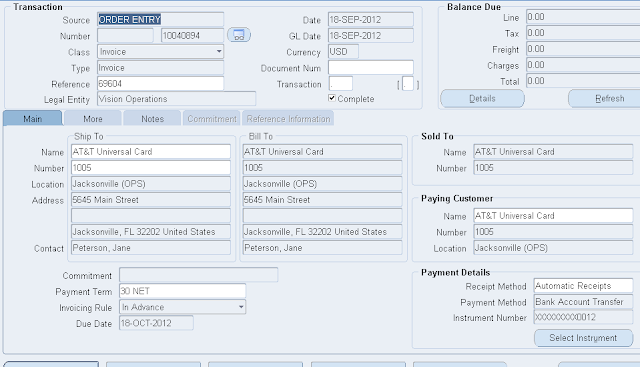
The Invoice created can be seen using the Receivables responsibility
Receivables Super User> Transactions> Transactions
Query with the Order Number as Reference
Affected Tables:
RA_CUSTOMER_TRX_ALL will have the Invoice header information. The column INTERFACE_HEADER_ATTRIBUTE1 will have the Order Number.
RA_CUSTOMER_TRX_LINES_ALL will have the Invoice lines information. The column INTERFACE_LINE_ATTRIBUTE1 will have the Order Number.
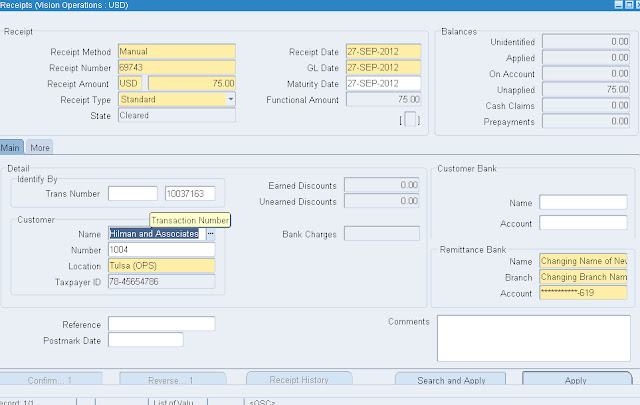
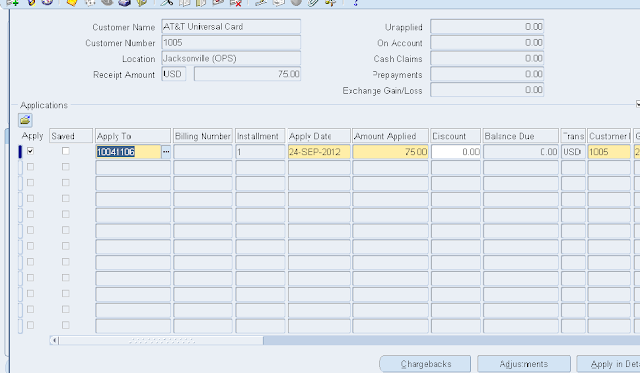
Create receipt: Receivables> Receipts> Receipts
Tables affected:
AR_CASH_RECEIPTS_ALL
Transfer to General Ledger:
To transfer the Receivables accounting information to general ledger, run General Ledger Transfer Program
Receivables> View Requests
Parameters:

Tables Affected:
GL_INTERFACE
Journal Import:
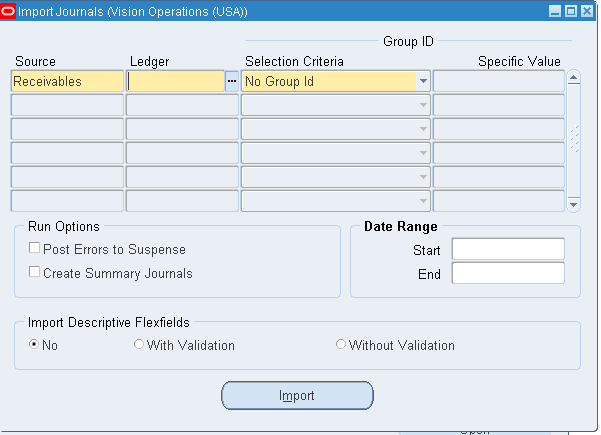
To transfer the data from General Ledger Interface table to General Ledger, run the Journal Import program from Oracle General Ledger.
General Ledger > Journal> Import> Run
Parameters:
Select the appropriate Source.
Enter one of the following Selection Criteria:
No Group ID: To import all data for that source that has no group ID. Use this option if you specified a NULL group ID for this source.
All Group IDs: To import all data for that source that has a group ID. Use this option to import multiple journal batches for the same source with varying group IDs.
Specific Group ID: To import data for a specific source/group ID combination. Choose a specific group ID from the List of Values for the Specific Value field.
If you do not specify a Group ID, General Ledger imports all data from the specified journal entry source, where the Group_ID is null.
Define the Journal Import Run Options (optional)
Choose Post Errors to Suspense if you have suspense posting enabled for your set of books to post the difference resulting from any unbalanced journals to your suspense account.
Choose Create Summary Journals to have journal import create the following:
• one journal line for all transactions that share the same account, period, and currency and that has a debit balance
• One journal line for all transactions that share the same account, period, and currency and that has a credit balance.
Enter a Date Range to have General Ledger import only journals with accounting dates in that range. If you do not specify a date range, General Ledger imports all journals data.
Choose whether to Import Descriptive Flexfields, and whether to import them with validation.
Click on Import button
Affected tables
GL_JE_BATCHES, GL_JE_HEADERS, GL_JE_LINES
Posting:
We have to Post journal batches that we have imported previously to update the account balances in General Ledger
General Ledger> Journals > Enter
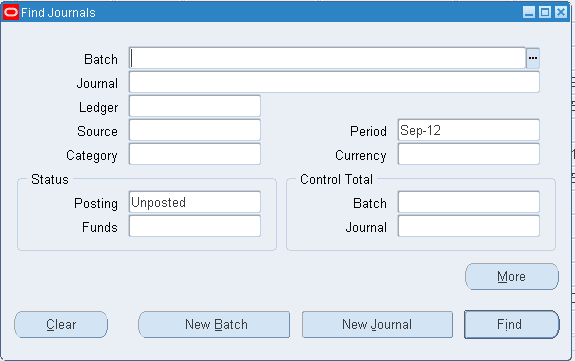
Click Find
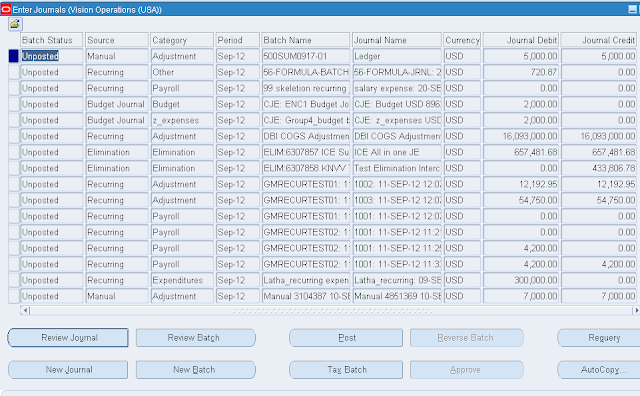
From the list of unposted journals displayed, select one journal at a time and click on Post button to post the journal.

If you know the batch name to be posted you can directly post using the Post window

- Enter the Sales Order
- Book the Sales Order
- Launch Pick Release
- Ship Confirm
- Create Invoice
- Create the Receipts either manually or using Auto Lockbox ( In this article we will concentrate on Manual creation)
- Transfer to General Ledger
- Journal Import
- Posting
Involved Modules
Order Management: Creating and shipping the OrderInventory: Onhand availability, Reservation
Receivables: For Receipt against invoice
General Ledger: Importing, entering and posting the journals
Enter the Sales Order:
Order Management Super User Operations (USA)>Orders Returns >Sales OrdersEnter the Customer details (Ship to and Bill to address), Order type.
Click on Lines Tab. Enter the Item to be ordered and the quantity required
Line is scheduled automatically when the Line Item is saved.
Scheduling/unscheduling can be done manually by selecting Schedule/Un schedule from the Actions Menu.
You can check if the item to be ordered is available in the Inventory by clicking on Availability Button.
Save the work.
Tables Affected:
OE_ORDER_HEADERS_ALL
OE_ORDER_LINES_ALL
Columns used for identification of flow
FLOW_STATUS_CODE in both the tables which is ENTERED.
Book the Sales Order
Book the Order by clicking on the Book Order button
Now that the Order is BOOKED, the status on the header is change accordingly.
Tables affected:
The FLOW_STATUS_CODE in the table OE_ORDER_HEADERS_ALL would be BOOKED.
The FLOW_STATUS_CODE in OE_ORDER_LINES_ALL will be AWAITING_SHIPPING.
New records will be created in WSH_DELIVERY_DETAILS with RELEASED_STATUS=’R’ (Ready to Release)
Also Record(s) will be inserted into WSH_DELIVERY_ASSIGNMENTS
At the same time DEMAND INTERFACE PROGRAM runs in the background and inserts into MTL_DEMAND.
Launch Pick Release
Shipping > Release Sales Order > Release Sales Orders
Give the Sales Order and Rule details as required
Key in the details in Shipping Tab, Autocreate Delivery: Yes, Auto Pick Confirm: Yes, Autopack Delivery: Yes
Similarly key in the Subinventory, location and org details in Inventory tab as required
Then select Execute Now button.
On completion this will show below window
Pick Release process will in turn run few more concurrent requests like
Auto Pack Report, Pick Slip Report, Shipping Exceptions Report (These are what we have chosen in the shipping tab during Pick Release)
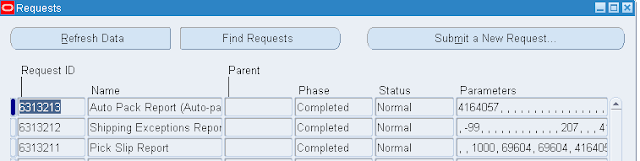
Auto Pack Report, Pick Slip Report, Shipping Exceptions Report (These are what we have chosen in the shipping tab during Pick Release)
Tables Affected
If Autocreate Delivery is set to ‘Yes’ then a new record is created in the table WSH_NEW_DELIVERIES
DELIVERY_ID is populated in the table WSH_DELIVERY_ASSIGNMENTS
The RELEASED_STATUS in WSH_DELIVERY_DETAILS would be now set to ‘Y’ (Pick Confirmed) if Auto Pick Confirm is set to Yes otherwise RELEASED_STATUS is ‘S’ (Release to Warehouse)
Pick Confirm the Order:
If Auto Pick Confirm is set to Yes during Pick Release, then this process will happen systematically.
In other cases, need to do this by doing a move order transaction
Inventory Super User > Move Order> Transact Move Order
Take the Move Order Number form the Shipping Transaction Form and find that and transact.
Ship Confirm the Order:
Order Management Super User>Shipping >Transactions
Find by Order Number
Here you can find all the details
If the line status is Staged/Pick Confirmed, we can go for a shipment Then Click on the Delivery tab
Then Click Ship Confirm
Note: If Ship Confirm button is inactive, then please check to the user id you are logged in, whether Shipping Grant given or not. If not they add a shipping grant to the user id and try again.
Then OK.
The Status in Shipping Transaction form in Delivery tab should be closed
This will kick off concurrent programs like.INTERFACE TRIP Stop, Commercial Invoice, Packing Slip Report, Bill of Lading
Tables Affected:
RELEASED_STATUS in WSH_DELIVERY_DETAILS would be ‘C’ (Ship Confirmed)
FLOW_STATUS_CODE in OE_ORDER_HEADERS_ALL would be “BOOKED“
FLOW_STATUS_CODE in OE_ORDER_LINES_ALL would be “SHIPPED“
Once all background process completes, the Shipping Transaction Status in Lines/LPNs tab becomes Interfaced
Create Invoice:
Run workflow background Process
Order Management >view >Requests
Workflow Background Process inserts the records RA_INTERFACE_LINES_ALL with
INTERFACE_LINE_CONTEXT = ’ORDER ENTRY’
INTERFACE_LINE_ATTRIBUTE1= Order_number
INTERFACE_LINE_ATTRIBUTE3= Delivery_id
And spawns Auto invoice Master Program and Auto invoice import program which creates Invoice for that particular Order
Check the Invoice:
The Invoice created can be seen using the Receivables responsibility
Receivables Super User> Transactions> Transactions
Query with the Order Number as Reference
Affected Tables:
RA_CUSTOMER_TRX_ALL will have the Invoice header information. The column INTERFACE_HEADER_ATTRIBUTE1 will have the Order Number.
RA_CUSTOMER_TRX_LINES_ALL will have the Invoice lines information. The column INTERFACE_LINE_ATTRIBUTE1 will have the Order Number.
Create receipt: Receivables> Receipts> Receipts
Click Apply to apply this to an invoice and then select the invoice in next screen and then apply.
Tables affected:
AR_CASH_RECEIPTS_ALL
Transfer to General Ledger:
To transfer the Receivables accounting information to general ledger, run General Ledger Transfer Program
Receivables> View Requests
Parameters:
- Give in the Start date and Post through date to specify the date range of the transactions to be transferred.
- Specify the GL Posted Date, defaults to SYSDATE.
- Post in summary: This controls how Receivables creates journal entries for your transactions in the interface table. If you select ‘No’, then the General Ledger Interface program creates at least one journal entry in the interface table for each transaction in your posting submission. If you select ‘Yes’, then the program creates one journal entry for each general ledger account.
- If the Parameter Run Journal Import is set to ‘Yes’, the journal import program is kicked off automatically which transfers journal entries from the interface table to General Ledger, otherwise follow the topic Journal Import to import the journals to General Ledger manually.
Tables Affected:
GL_INTERFACE
Journal Import:
To transfer the data from General Ledger Interface table to General Ledger, run the Journal Import program from Oracle General Ledger.
General Ledger > Journal> Import> Run
Parameters:
Select the appropriate Source.
Enter one of the following Selection Criteria:
No Group ID: To import all data for that source that has no group ID. Use this option if you specified a NULL group ID for this source.
All Group IDs: To import all data for that source that has a group ID. Use this option to import multiple journal batches for the same source with varying group IDs.
Specific Group ID: To import data for a specific source/group ID combination. Choose a specific group ID from the List of Values for the Specific Value field.
If you do not specify a Group ID, General Ledger imports all data from the specified journal entry source, where the Group_ID is null.
Define the Journal Import Run Options (optional)
Choose Post Errors to Suspense if you have suspense posting enabled for your set of books to post the difference resulting from any unbalanced journals to your suspense account.
Choose Create Summary Journals to have journal import create the following:
• one journal line for all transactions that share the same account, period, and currency and that has a debit balance
• One journal line for all transactions that share the same account, period, and currency and that has a credit balance.
Enter a Date Range to have General Ledger import only journals with accounting dates in that range. If you do not specify a date range, General Ledger imports all journals data.
Choose whether to Import Descriptive Flexfields, and whether to import them with validation.
Click on Import button
Affected tables
GL_JE_BATCHES, GL_JE_HEADERS, GL_JE_LINES
Posting:
We have to Post journal batches that we have imported previously to update the account balances in General Ledger
General Ledger> Journals > Enter
Click Find
From the list of unposted journals displayed, select one journal at a time and click on Post button to post the journal.
If you know the batch name to be posted you can directly post using the Post window


