Showing posts with label XML Publisher. Show all posts

Friday, August 3, 2012

XMLP Round Function


Testing Round Function..
Actual Value: 23.23
Rounded Value: 23

Actual Value: 23.53
Rounded Value: 24

Sample Files:
RTF: TestRounding.rtf
XML: Rounding.xml

Thursday, July 5, 2012

Page Numbering in XML Publisher/MS Word


Open the footer and press [Alt][F9] to display field codes. You should see this: If you dont get these fields, select header and press [Ctrl][F9]. Word displays empty braces {}. Enter field names PAGE or NUMPAGES inside the curly braces as shown below.

Page { PAGE } of { NUMPAGES }

Highlight { NUMPAGES} and press [Ctrl][F9] to create a new field that nests the Numpages field, like this:

Page { PAGE } of { { NUMPAGES} }

The insertion point will be where you need it, between the two opening braces, so just type =.
Click between the two closing braces and type -1. Here's what you should have:

Page { PAGE } of { = { NUMPAGES} -1 }

Highlight the contents of the footer and press [F9] to update the fields.
Press [Alt][F9] to switch to results mode.

Wednesday, April 18, 2012

Page Totals

Page totaling is performed in the PDF-formatting layer. Therefore this feature is not available for other outputs types: HTML, RTF, Excel.

Because the page total field does not exist in the XML input data, you must define a variable to hold the value. When you define the variable, you associate it with the element from the XML file that is to be totaled for the page. Once you define total fields, you can also perform additional functions on the data in those fields.

To declare the variable that is to hold your page total, insert the following syntax immediately following the placeholder for the element that is to be totaled:
<?add-page-total:TotalFieldName;'element'?>
where
TotalFieldName is the name you assign to your total (to reference later) and 'element' is the XML element field to be totaled. You can add this syntax to as many fields as you want to total.

Then when you want to display the total field, enter the following syntax:
<?show-page-total:TotalFieldName;'number-format'?>
where
TotalFieldName is the name you assigned to give the page total field above and number-format is the format you wish to use to for the display.

Example:
 
Sample Files:
RTF:PageTotal.rtf
XML:EmployeeListing.xml

Ouput with Barcode

1. check if the temp directory is set
XMLP -> Administration -> temp directory has to be set as /tmp


2. Check if the font files, mapping and configuration is done as shown in below screenshots.


4. Font file(ttf ) has to be placed in following unix path,
Eg: /uat/appsebs3/EBSCVT3/apps/tech_st/10.1.3/appsutil/jdk/jre/lib/fonts/IDAutomationC128S.ttf

based on the instance the base path will change, but the path after apps is the same for all the instance.


This setup has to be done in the RTF
------------------------------------
Add following placeholder in template:


<?if:TASK_ID!=''?> <?format-barcode:TASK_ID;'code128b';'XMLPBarVendor'?> <?end if?>


Add this custom property,
Name - xdo-font.IDAutomationC128S.normal.normal
Type - Text
Value - truetype./uat/appsebs3/EBSCVT3/apps/tech_st/10.1.3/appsutil/jdk/jre/lib/fonts/IDAutomationC128S.ttf

Then the rtf has to be uploaded

Format rows color alternatively

Sample Code:
<?if@row: position() mod 2=0?> <xsl:attribute name="background-color" xdofo:ctx="incontext">blue</xsl:attribute><?end if?>

<?if@row: position() mod 2=1?> <xsl:attribute name="background-color" xdofo:ctx="incontext">red</xsl:attribute><?end if?>

RTF Template:
 PDF Output:
Sample Files:
RTF :FormatRows
XML: EmployeeListing.xml

Tuesday, April 17, 2012

Lexicals and Bind variables

Lexicals can be confusing for new developers. Lexicals & Bind variables are used in the following technology sets:

1. BI Publisher
2. Reports6i
3. SQL Scripts
4. PL/SQL

A bind variable is used for the assignment of value, a lexical is the literal value.
The syntax is as follows for a bind variable :P_SEGMENT and the sytax for lexical is &L_WHERE_CLAUSE.

Here’s how you would use the two of these in a query:
1. Select * from mtl_system_items where segment1 = :p_segment
2. Select * from mtl_system_items where &l_where_clause

Here are some neat tricks with lexicals and how they can be combined with bind variables. Below we can see that a lexical can contain a bind variable. This may seem confusing but it has major implications for the performance of your query.

Good:
l_where_clause := 'segment1 = :p_segment';

Bad:
l_where_clause := 'segment1 = '''p_segment'';

Appending segment1i s a bad idea because it causes a performance issue. Every time this query is parsed it needs to generate a new explain plan. So nothing gets cached. Where as the lexical with a bind variable is much better, because the statement gets cached.

The performance issue doesn’t really rear its ugly head until it gets in a production environment or this query is being executed in some sort of batch process.

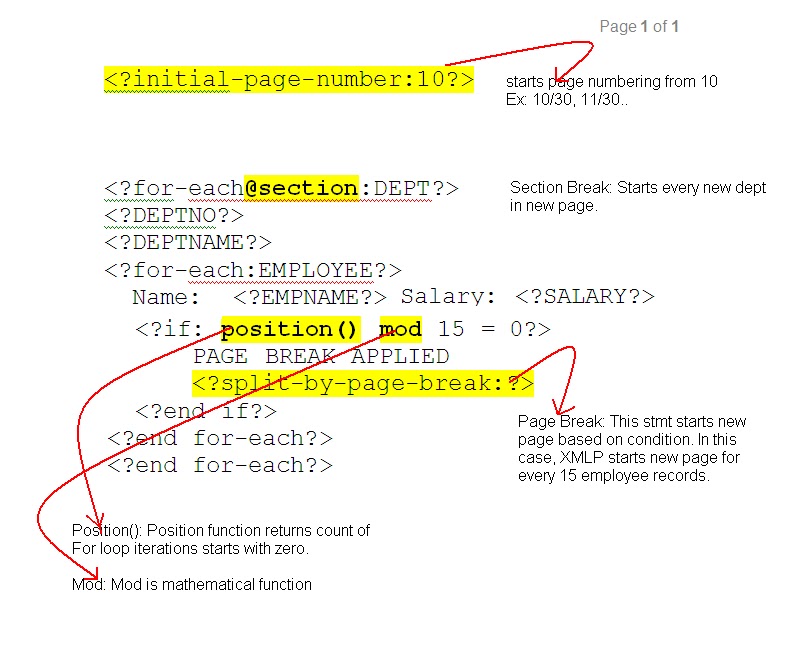
Conditionally Limiting Rows on a Page

For those of you new to xpath or xsl, position() is the current position in a for-each loop. For each iteration the position is incremented by one automatically. Typically, position does not need to be used in most Xpath operations.

Modulus (mod) is a basic mathematical function that divides a number and returns the reminder. It's usefullness is not strictly limited to mathematical applications. As an example, if you have ever written program that creates a Gregorian calendar you have used modulus. Anyways, it's also a valuable function in bip as we will see shortly.

Pseudo Code Solution
If position() mod 15 = 0 then
  Use bip section break
End if

BIP Solution
All we have to do is test if the position is divisible by 15, if it's not then we do nothing, otherwise, we do a page-break.

NOTE:
In some cases standard page breaks doesn't work in grouping, use XSL page break in form field

<xsl:attribute name="break-before" > page</xsl:attribute>


Sample Files:
XML: EmployeeListing.xml
RTF: SectionBreak-PageBreakbyNum.rtf
Source=>http://bipublisher.blogspot.com/2009/06/bi-publisher-conditionally-limiting.html

BI Publisher XDO_TOP - MSword Debugging

Easiest way to configure BI Publisher and debug the BI Publisher APIs.

1. Create a directory on your C: drive called xdo_top
2. Create a sub-directory called temp:  C:\xdo_top\temp
   Create a sub-directory called resource:   C:\xdo_top\resource
3. Create a xdodebug.cfg file in the resource directory with the following 2 lines:
LogLevel=STATEMENT
LogDir=C:\xdo_top\temp
4. Optionally copy an existing version xdo.cfg file if you need it for barcodes, micr fonts, etc.  Note: You can find this in one of the oracle bi publisher template builder directory's.
5. In MSWord goto the Add-ins menu for BIP,  Click on -> tools->options->java options, Add the following:   -DXDO_TOP=C:\\xdo_top


Note:  The screen shot also has a memory parameter, you do not need the memory option -Xmx256M

6. Restart msword* Not really needed but a good idea

When you start bi publisher and preview a template from MSword the following should happen:
    * xdo.log should be created under c:\xdo_top\temp. 
    * The log file should contain rich debugging information to help you with your troubleshooting. 

When would I need to use debugging?
As an example, let say you wanted to use the xdo.cfg file to configure a font, but that insolent micr font isn't working in your template.  You can review the log to see if it's indeed being pulled in.

Source=> http://bipublisher.blogspot.com/

Friday, April 13, 2012

How to Debug – XML Publisher Report – Log

The Concurrent Request ends with Phase ‘Completed’ and Status ‘Warning’ which indicates that the Output Post Processor (OPP) failed to generate an output file. In such cases the request log file shows a generic error message indicating the the post-processing action has failed:
    +————- 1) PUBLISH ————-+
    Beginning post-processing of request 3181529 on node PBREUGEL at 11-APR-2008 11:41:30.
    Post-processing of request 3181529 failed at 11-APR-2008 11:41:31 with the error message:
    One or more post-processing actions failed. Consult the OPP service log for details.
    +————————————–+

The actual error returned by the XML Publisher Core engine is captured in the OPP log file. There are three possible ways to obtain the OPP log file:

    * Directly from the file system based after identifying the corresponding OPP log file name using the following SQL statement:

    SELECT fcpp.concurrent_request_id req_id, fcp.node_name, fcp.logfile_name
      FROM fnd_conc_pp_actions fcpp, fnd_concurrent_processes fcp
    WHERE fcpp.processor_id = fcp.concurrent_process_id
       AND fcpp.action_type = 6
       AND fcpp.concurrent_request_id = &&request_id

    * Via the Forms application:

   1. Login to the application as SYSADMIN
   2. Responsibility: System Administrator
   3. Function: Concurrent –> Manager –> Administration
   4. Select the Output Post Processor
   5. Click on the Processes button
   6. Select the Concurrent Process which was active during the time that the request ran
   7. Click on the Manager Log button to open the Output Post Processor log file

    * Via the Oracle Application Manager (OAM)

   1. Login to the application as SYSADMIN
   2. Responsibility: System Administration
   3. Function: Oracle Applications Manager –> Concurrent Managers
   4. Select the Output Post Processor Service and click on View Details
   5. Click on View Processes
   6. Select the Concurrent Process which was active during the time that the request ran
   7. Click on the Log button to open the Output Post Processor log file

Wednesday, April 11, 2012

Tuesday, January 5, 2010

Create XML Publisher Report Using Oracle Reports( RDF )

Required Files:
Oracle Report: HGXPUBTEST.rdf
Template file: HGXPUBTEST.rtf

Output Files:
Output in PDF: HGXPUBTEST_OUTPUT.pdf

XML Publisher is a simple engine. It needs only 3 input values to generate report.
1.Data to display on report(in XML format)
2.Layout model/presentation(in XSL-FO format or RTF)
3.Final output type (PDF, Doc, HTML, etc)
Points to Note:
o XML publisher doesn't care about how you are generating xml data. Only it needs is, your actual data(text file, excel file, data in DB) must be converted in xml format(calling XML Data) as input to the engine. To get this, you can write your own xml data or use Oracle Reports to generate xml data or use any other third party tools to generate xml data from actual data.
o XSL-FO stands for Extensible Stylesheet Language Formatting Objects. Used to present XML Data in readable and  user friendly format. But normal user understands very little in this, so there is an alternative i.e. user friendly RTF. You do presentation work on RTF file and give this as input to the XML Publisher engine. XML Publisher converts RTF into XSL-FO.

What is new here?
We are using Oracle Reports(rdf file) to generate XML data.

Run CP
  |
   -----------Oracle Reports(RDF)----->Generates XML Data-->
  |                                                                                 |--->XML Pub Engine-->CP Output(in PDF or etc)
   --Finds template from XML Publihser Admin resp-->RTF file-->

Summary Steps:
1. Create Oracle Report(HGXPUBTEST.rdf)
2. Define/Register Concurrent Program(HGXPUBTEST)
3. Create Template Definition and Template(HGXPUBTEST.rtf)
4. Run CP and Show XML Publisher report in PDF format(HGXPUBTEST_OUTPUT.pdf)

Step 1: Create Oracle Report(HGXPUBTEST.rdf)
1. Open Report Builder
Follow below screen shots to complete Oracle Report creation.
2. Save file as HGXPUBTEST.rdf. Compile and check for errors. Close Report Builder.
3. Now move this file to $AP_TOP/reports/US
    Or
    Keep file in local directory and set file path in profile option 'FND: Override Directory' at user level.

Step 2: Define/Register Concurrent Program(HGXPUBTEST)
1.Register Executable
Navigate to System Administrator->Concurrent->Program->Executable
Provide following information as shown in the picture.
Executable: HGXPUBTEST
Short Name: HGXPUBTEST
Application: Payables
Execution Method: Oracle Reports
Execution File Name: HGXPUBTEST
2.Define CP
Navigate to System Administrator->Concurrent->Program->Define
Provide following information as shown in the picture.
Program: HG-XML Publisher Test Report
Short Name: HGXPUBTEST
Application: Payables
Executable Name: Oracle Reports
Format: XML

CP definition looks like this after creation.


Points To Note:
o Note down Executable name. We need to use this in XML Publisher definition to refer this CP.
o XML Publisher engine needs data input in XML format. So always select format as XML.( Final output will be PDF/RTF/HTML.. as selected by you in report submission.)
o Add new CP to the Request Group, then add Request Group to your Responsibilty.

Step 3: Create Template Definition and Template(HGXPUBTEST.rtf)
1.Create Template Definition
Navigate to XML Publisher Administrator->Data Definitions
Click Create Data Definition button.

Provide following information as shown in the picture.
Code: HGXPUBTEST
Name: HG-XML Publisher Test Report(your choice)
Application: Payables(your choice)
Click Apply.

Definition looks like this after creation.
Points To Note:
Value given in the Code field must be same as the Executable name of the CP 'HG-XML Publisher Test Report'.

2.Create Template
Navigate to XML Publisher Administrator->Templates
Click Create Template button.

Provide following information as shown in the picture.
Code: HGXPUBTEST(your choice)
Name: HG-XML Publisher Test Report(your choice)
Application: Payables(your choice)
Type: RTF
Data Definition: HG-XML Publisher Test Report
Upload template HGXPUBTEST.rtf.
Click Apply

Template looks like this after creation.

Step 4:  Run CP and Show XML Publisher report in PDF format(HGXPUBTEST_OUTPUT.pdf)
1. Submit Request
If you want final output in different format(RTF, HTML, etc), click Options button and change the Format type. Default is PDF.
2.CP Output(PDF) 

Friday, December 18, 2009

XML Publisher Template(RTF) Creation and Grouping Data Using XML/BI Publisher Desktop for Word

Prereq and Downloads
  • XMLP_Desktop 5.5/BI Publisher Desktop 10.1.3.4.1 for Windows add-on must be installed on your machine.
    • You can download "BI Publisher Desktop 10.1.3.4.1 for Windows"(123 MB) from below link.
    • http://www.oracle.com/technology/software/products/publishing/index.html
    • Run BIPublisherDesktop.exe 

    Summary Steps and Sample Downloads:
    1.Extract XML data from CP/Create your own sample XML data (HGXMLP-DATA.xml)
    2.Create layout and group data in new template(RTF) file (HGXMLP-TP.rtf)
    3.Preview output in PDF/HTML/RTF/XML (HGXMLP-OUT.pdf)

    Step 1: Extract XML data from CP/Create your own sample XML data(HGXMLP-DATA.xml)
    Extract XML data from CP
    1.Open any existing concurrent program definition and change the Output:Format to XML.
    2.Run CP. Save output(which comes in XML).
    Or        
    Create your own sample XML Data(HGXMLP-DATA.xml)

    Step 2: Create template layout and group data in the template(RTF) file(HGXMLP-TP.rtf)
    1.Install XMLP_Desktop 5.5/BI Publisher Desktop 10.1.3.4.1
    2.Open new MS Word document. You can see new Menus added in tool bar by BI Publisher Desktop.
    3.Click menu Data->Load XML Data. Select file HGXMLP-DATA.xml created in Step 1. You will get message 'Data Loaded Successfully'
    4.Click menu Insert->Table/Form. It opens screen 'Insert Table/Form'.
    Data Source: Data Source shows hierarchy of the nodes present in your xml data file(HGXMLP-DATA.xml)
    Template: Template shows hierarchy of the nodes you selected to show in a template layout
    Properties: Each node Style, Sort By, Grouping, Sort Order, etc.
    Preview: You can see preview of the layout while adjusting nodes.
    5.Drag nodes from Data Source tree to Template to create table structure. When you do drag and drop, it asks for "Drop Single Node", "Drop All Nodes", "Cancel".
    6.Select "Drop All Nodes".
    7.To group invoices by VENDOR, select node 'Invoice' and set properties Style to 'FreeForm', Grouping to 'VENDOR' in Properties window.
    8.To group invoices under vendor by Invoice_Date, select node 'Vendor' and set properties Style to 'Table', Grouping to 'INVOICE_DATE' in Properties window.
    9.Click Ok button. You will see the table layout on the document.
    10. Now add Heading and Footer to the report and save as rtf file(HGXMLP-TP.rtf). Template is ready.

    Step 3: Preview output in PDF/HTML/RTF/XML..(HGXMLP-OUT.pdf)
    1.Open HGXMLP-TP.rtf created in Step 2.
    2.Click menu Data->Load XML Data and select xml data file HGXMLP-DATA.xml created in Step 1.
    3.Click menu Preview->PDF to see the output.

    4.Output(Shows invoices order by vendor name and invoice date in PDF format)

    Thursday, December 3, 2009

    Create XML Publisher Report(With out RDF file)

    Required Files:
    Template file: HGXPUBTEST.rtf
    Data Template: HGXPUBTEST.xml

    Output Files:
    Output in PDF: HGXPUBTEST_OUTPUT.pdf

    Define Concurrent Program
    Navigate to System Administrator->Concurrent->Program->Define
    Provide folliowing information as shown in the picture.
    Program: HG-XML Publisher Test Report
    Short Name: HGXPUBTEST
    Application: Payables
    Executable Name: XDODTEXE
    Format: XML

    Points To Note:
    1.Note down short name. We need to use this XML Publisher defintion to refer this CP.
    2.Select executable name as "XDODTEXE" if xml data source is data template(HGXPUBTEST.xml). Method is Java Concurrent Program. If you are generating xml data using Oracle Reports(RDF), then you must define executable(System Administrator->Concurrent->Program->Executables) for this CP and provide it's name in CP define window. Method will be Oracle Reports in this case.
    3.XML Publisher engine needs data input in XML format. So always select format is XML.( Final output will be PDF/RTF/HTML.. as selected by you in report submission.)
    4.If you want to see final output in XML format then you need set format type as Text instead of XML.

    CP definition looks like this after creation.


    Add new CP to the Request Group, then add Request Group to your Responsibilty.

    Create Data Definition
    Navigate to XML Publisher Administrator->Data Definitions
    Click Create Data Definition button.

    Provide folliowing information as shown in the picture.
    Code: HGXPUBTEST
    Name: HG-XML Publisher Test Report(your choice)
    Application: Payables(your choice)
    Click Apply
    In the second part of the same page upload file HGXPUBTEST.xml as the Data Template.
    Click Save.

    Points To Note:
    1.Value given in the Code field must be same as the short name of the CP 'HG-XML Publisher Test Report'.
    2.HGXPUBTEST.xml is the data template file which holds Paramters, Data Query, Triggers, Data Structure of the report.

    Definition looks like this after creation.

    Create Template
    Navigate to XML Publisher Administrator->Templates
    Click Create Template button.

    Provide folliowing information as shown in the picture.
    Code: HGXPUBTEST(your shoice)
    Name: HG-XML Publisher Test Report(your choice)
    Application: Payables(your choice)
    Type: RTF
    Data Definition: HG-XML Publisher Test Report
    Upload template HGXPUBTEST.rtf.
    Click Apply

    Template looks like this after creation.

    Submit Request
    If you want final output in different format(RTF, HTML, etc), click Options button and change the Format type. Default is PDF.

    CP Output(PDF)
    Related Posts Plugin for WordPress, Blogger...